
Table of Contents
Soundboard Overview
Mixes
The soundboard allows us to tailor different mixes of our inputs for different uses. The most obvious is the sanctuary house speakers, but we also send a custom blend of sounds to the choir monitors, to ceiling speakers in the narthex and lounge, and to the PC that streams our service to YouTube.
Each of these destinations has a separate mix on the soundboard. While sitting at the soundboard your ears can hear the sound in the sanctuary. But you need to keep the needs of the other mixes in mind. Remember to unmute the hanging mics during organ music and the audience mics during congregational responses and hymn. That doesn't add anything to the sanctuary sound but it does allow people in other locations to hear what's happening in the sanctuary.
Details about each of the Mixes can be found here.
Channels
An audio source like a microphone or CD player is called an input.
The blend of inputs tailored for a particular destination is called a Mix.
Each column of buttons with a fader is called a channel.
The distinctive look of a soundboard comes from the channels: those columns of buttons and faders that allow you to adjust the volume of many different inputs into one pleasing output.
Let's use the pulpit microphone as an example input. This input is labeled “Pulpit” in the soundboard.
Pulpit is assigned to the first channel in Layer A. You can mute this channel or adjust its volume with the fader. We could have assigned Pulpit to any channel or to more than one channel at once. In fact Pulpit is also assigned to the first channel on Layer C. You can adjust it's volume from there too. Turn the Pulpit volume all the way down on Layer A and then switch to Layer C. You'll notice that the Pulpit volume is all the way down here too. Now adjust it back to 0 dB and switch to Layer A again. The fader has moved to 0 dB in Layer A too. That's because both of these channels are acting on the same input.
If we wanted to we could have the input Pulpit show up on every channel on Layer A. This wouldn't be useful for mixing sound but it would be a great demonstration that we can assign inputs to as many channels as we want.
Audio sources like microphones and CD players are called inputs and connect to the back of the soundboard. Each of these audio sources is assigned to a channel on the soundboard. Each input can be pre-amped, equalized, and messed with using the LCD screen. The channels are used to select an input for processing on the LCD screen, to mute the input, and to adjust the volume of the input sent to the Main L/R mix and the other 12 mixes. We use the combination of the Mix buttons and the fader to control each input's volume in each mix.
Note that when you hit Mute you mute that input in all mixes at once. When you pull down the fader to -~~ you turn down the input only in the current mix.
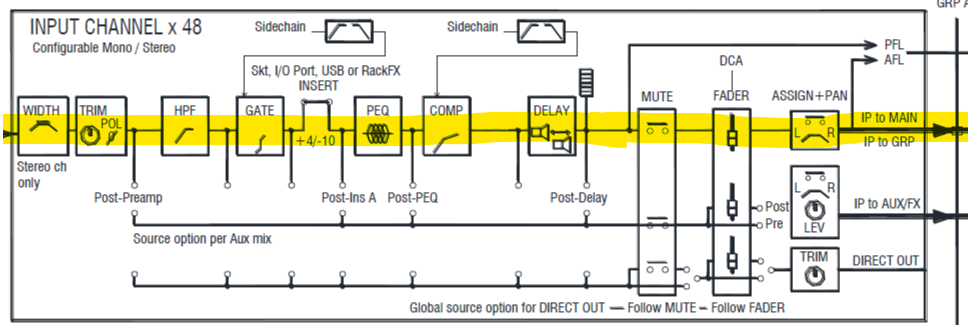
The block diagram below shows the signal path for a channel on the Main L/R mix. The feature to notice is that the Mute button takes effect before the fader.
The block diagram below shows the signal path for a channel going to one of the 12 mixes. There's not much difference but the relevant feature is that the Mute button takes effect before the input signal is sent to the mixes.
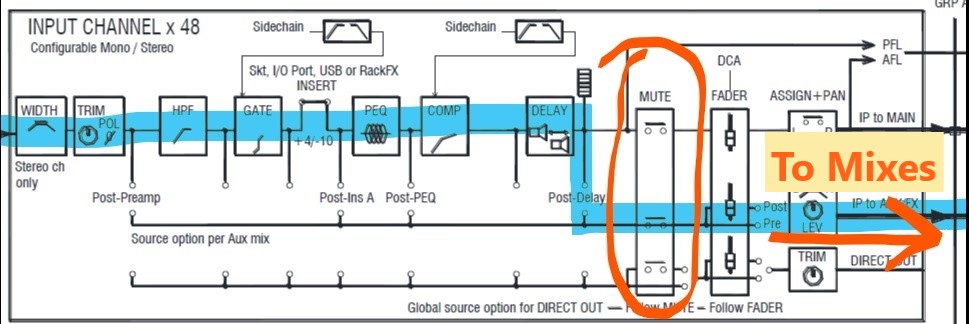
This means that muting the Pulpit mic in the Main L/R mix will also mute it in the PC mix and every other mix too.
The Persistent Channels and Layer A
Certain channels on the soundboard are connected to the same input week after week. The channels labeled Pulpit, Lectern, Hanging Left, Hanging Right, Piano, and the four Aud(itorium) mics are always connected to the same microphones week after week. These channels are all visible on Layer A.
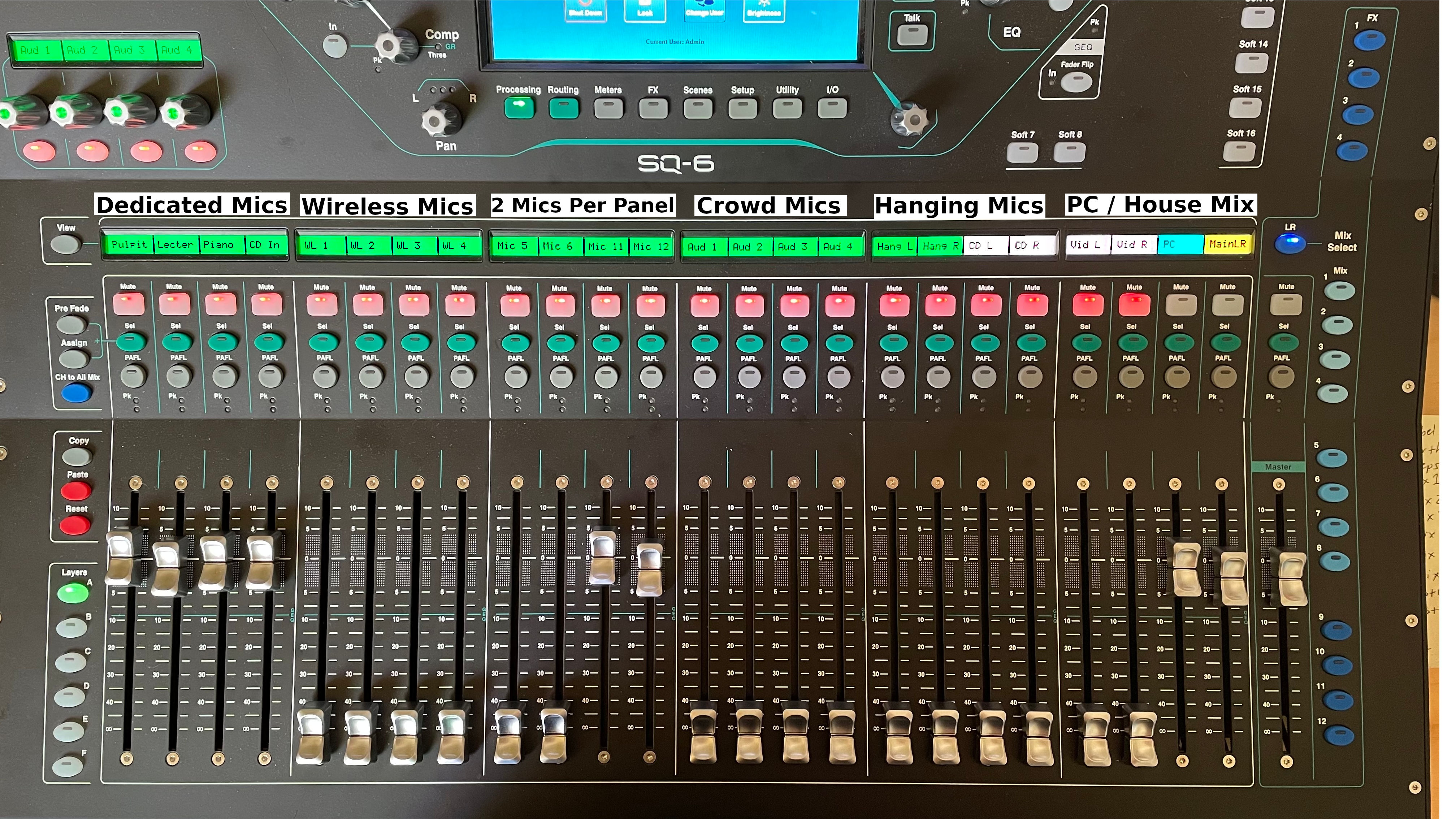
Most worship services will be performed without ever having to leave Layer A. The mics you'll need for responsive readings, the sermon, hymns, and communion are all here.
The Output Mixes and Layer B
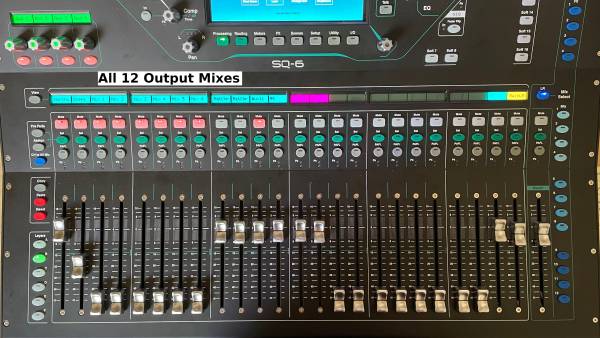
We've assigned all the output mixes to Layer B so that you can see their volumes and mutes in one place. If you want to check that Monitor A is turned up or that the Lounge speakers are unmuted, this is a great place to look.
The Floating Channels and Layer C
Other channels may be used for different vocalists each week depending on whether there is a soloist, a quartet, or a guest instrumentalist. These channels are labeled “Mic 5” through “Mic 20”. Terry will tell you which channels each new singer or instrument will be using.
The most often-used of these channels – Mic 5, Mic 6, Mic 11, and Mic 12 – are visible on Layer A. The rest of them are visible on Layer C. In fact every microphone jack on all three patch panels in the church is visible on Layer C.
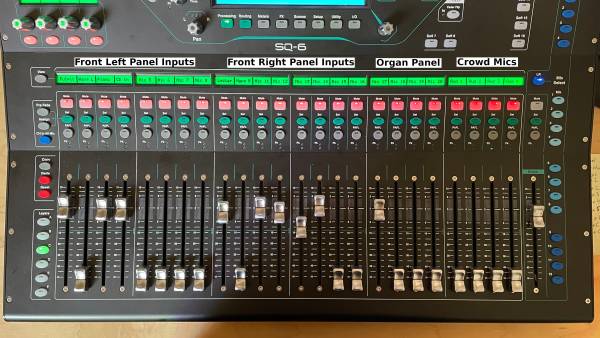
Notice that the order of microphones on Layer C follows their order on the patch panels at the front of the church.
| Pulpit Panel | Lectern Panel | Organ Panel |
|---|---|---|
| Pulpit (Mic 1) | Lectern (Mic 9) | Mic 17 |
| Hanging Left (Mic 2) | Hanging Right (Mic 10) | Mic 18 |
| Piano (Mic 3) | Mic 11 | Mic 19 |
| CD In (Mic 4) | Mic 12 | Mic 20 |
| Mic 5 | Mic 13 | |
| Mic 6 | Mic 14 | |
| Mic 7 | Mic 15 | |
| Mic 8 | Mic 16 |
Muting Channels
An input can be silenced across all mixes with the “Mute” button at the top of the channel. A microphone channel should generally be muted except when someone is speaking or singing into it.1)
Channel Volume
When a channel is unmuted its volume can be increased or decreased in the currently selected mix by using the fader. The bottom of the fader range is labeled -~~ for negative infinity. A channel set to -~~ will be completely silent in the current mix even when unmuted.
Arriving at the Soundboard
When you turn on the soundboard it will be in the exact state it was in when last turned off. That might be from last Sunday, it might be from a wedding, it might be from a Boy Scouts ceremony. In other words, it might not be ready for a Sunday service.
It's best to begin by placing the board in a known state. Use the Scene Library to recall our Sunday settings.
Load the Scene for Sunday
Scenes allow us to save and recall all the settings on the board exactly how we want them. Our default Sunday worship service settings are saved in a scene called “Sunday”. We have saved other scenes for choir cantatas, special holiday services, and weddings. You should start each Sunday service by recalling the saved Sunday scene.
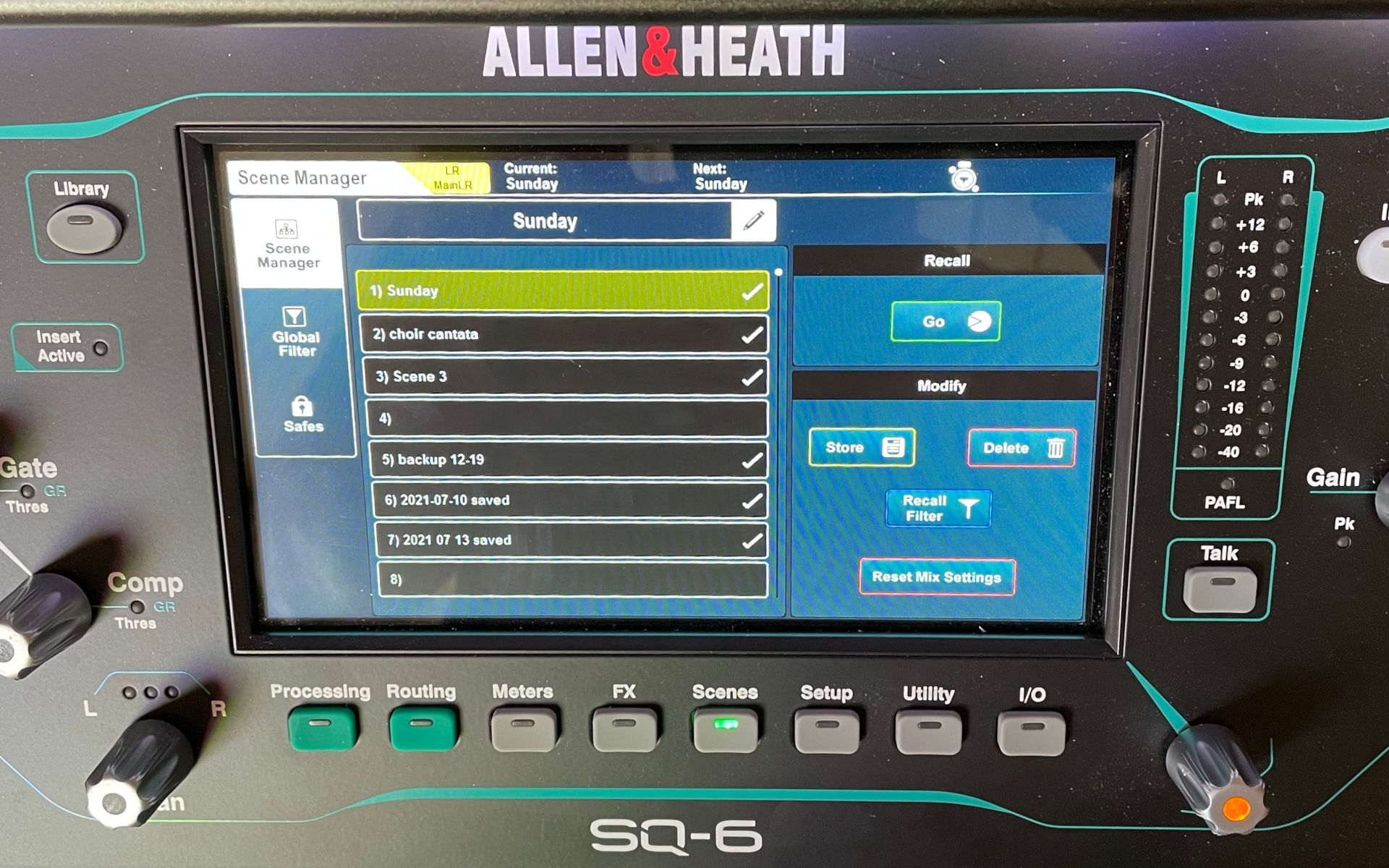
- Press the “Scenes” button below the LCD.
- Press scene 1 – named “Sunday” – on the screen.
- Press “Go” to recall that scene and put the board in a known good state.
Sound Check the Singers
Terry will tell you during sound check which microphones the singers are using. Each input jack at the front of the sanctuary is individually labeled: Mic 1, Mic 2, etc., all the way to Mic 20. Those same labels are used as the channel names on the soundboard. So if Terry says that Wes is on Mic 5 you know that the soundboard channel labeled “Mic 5” is the one you'll use to adjust Wes' volume.
Renaming Channels
It's a good practice to rename channels on the soundboard to help you find them quickly during service. If you change the channel label from “Mic 5” to “Wes” it will help you find it faster when you are mixing, especially if Wes, Nancy, Peggy, and Larry will all be singing at the same time. Fortunately this is easy.
- Press the green “Sel” button on the Mic 5 channel. The channel will appear on the LCD screen.
- Press the name of the channel – Mic 5 – on the LCD screen. A keyboard pops up to edit the channel name.
- Change the channel name to Wes and press “Apply”.
Now this channel is labeled “Wes” and will be easier to find. Repeat this process for anyone else holding a microphone.
Next week there might be a different batch of singers but your channels will still be labeled “Wes, Nancy, Peggy, and Larry”. This is why it's a good idea to recall the Sunday Scene every time you turn on the board. That will reset all channel names to Mic 5, Mic 6, etc.
Level the Vocals
The vocal channels will need to be leveled to make up for volume differences in the singer's voices and their microphone techniques.
- In the Left/Right mix, start with all vocal channels at 0 dB.
- Now adjust the faders to blend the voices.
- Particularly strong singers should be faded down a bit so their voice doesn't overpower the others.
- Quiet singers should be boosted so their voice is not lost beneath the rest.
Getting a good vocal mix is important not just to the congregation who listens to the vocals but also the singers who perform them. Leveling the vocals keeps it from sounding like a loud singer is stomping on everyone else or that a quiet singer is shy or half-hearted. Use your ears and make everyone sound their very best.
Create a Custom Layer
When the Sunday Scene is loaded layers E and F are completely blank. You may find it a helpful to customize one of them with the mics you'll be using in that day's service.
PAFL the PC Mix
The PAFL button sends an individual channel or an entire mix to your headphones. PAFL is a dumb name but a great tool. During sound check, after leveling the vocals in the house mix, change to Mix 12 and listen using the PAFL. Make sure that the vocals sound good here too, and adjust the faders for the vocal channels on this mix if you need to.
Mix 12 gets recorded and streamed to YouTube so we need to make sure that it sounds good. It will almost never need to be adjusted but should be checked anyway because this is what goes out into the world.
It's not a bad idea to check back in on Mix 12 during other parts of the service too. Check if you can hear:
- The congregation during responsive readings
- The organ and congregation during hymns
- The pastor during the sermon
- All the vocals – leveled and sounding good! – during the anthem
We learned during the COVID lockdown about the importance of making sure the sanctuary and the live stream both sound good. Ask Jason if you need horror stories.
Before the Service
Our YouTube stream starts a couple minutes before the actual service. You should unmute the Hanging mics and use PAFL to be sure that some crowd noise is audible in Mix 12. DO NOT USE THE AUDIENCE MICS for pre-service crowd noise because they're sensitive enough to pick up private conversations and maybe embarrassing details.
The service always starts with Terry making four chimes on the organ. The Hanging mics will pick this up too and everyone on YouTube will hear that the service is starting.
During the Service
Working the soundboard during the worship service is primarily about unmuting a channel when someone is talking and muting it again when they're done.
- Un/mute the lectern and pulpit for announcements and the sermon.
- Un/mute the lectern and house mics for responsive readings.
- Un/mute the hanging mics and house mics for hymns
- Un/mute Sara's wireless mic for the Time with Children
- Un/mute the choir mics and piano or CD In for the anthem.
When someone is speaking you ensure that their volume in the sanctuary and on Mix 12 is appropriate. When someone is singing you ensure that the vocal is not drown by the music, whether from piano, organ, or CD.
After the Service
Shut it down decently and in order.