Table of Contents
Sound Desk User's Manual
You are a sound board operator. A sound engineer has set up the sound board so that each microphone and loudspeaker sounds its best. They left us the job of making minor volume adjustments as different people use the microphones. It's not hard to keep everything sounding terrific.
This manual will guide you through the minor adjustments you will make during a church service. Mostly that is muting and unmuting microphones as needed, and adjusting the volume of the microphone in use.
Lets start by naming the parts of the sound board so we have common terms to use.
Quick Sound Board Outline
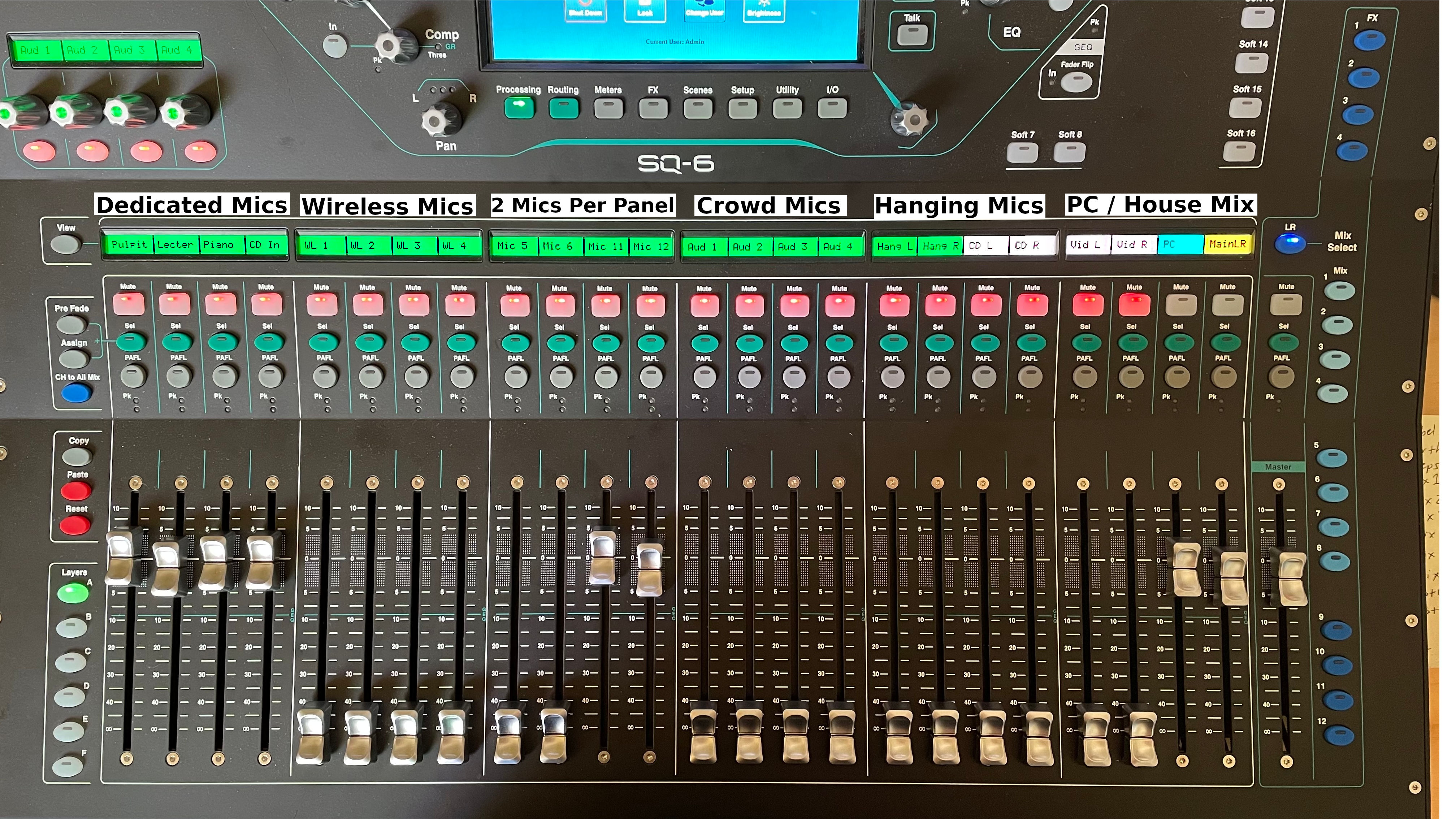
At the top of the sound board is the screen. It provides a lot of capabilities for setting up new microphones and sound EQ that you shouldn’t need. You'll use it to load the Sunday scene that gets the board ready for a worship service.
Below the screen are the 24 channel strips. Each channel strip has a label at the top indicating which microphone it controls. The important features to call your attention to are the mute buttons at the top of each strip and the faders at the bottom for adjusting volume.
To the left of the channel strips are the Layer buttons. We actually have access to 144 channel strips: 24 on Layer A, 24 on Layer B, 24 on Layer C, etc. Almost everything you'll ever need is on Layer A.
To the right of the channel strips is the Master volume fader and the Mix Select buttons. There is a main house mix (called the LR, or left-right mix) and 12 other mixes. Mix 1 goes to the chancel monitors so the choir can hear their music, Mix 10 goes to the Lounge and Nursery, and Mix 12 goes to the video PC for streaming. You will work on the LR mix and the others will mostly take care of themselves.
Walking through a church service
Load the Scene for Sunday
Scenes allow us to save and recall all the settings on the board exactly how we want them. Our default Sunday worship service settings are saved in a scene called “Sunday”. We have saved other scenes for choir cantatas, special holiday services, and weddings. You should start each Sunday service by recalling the Sunday scene.
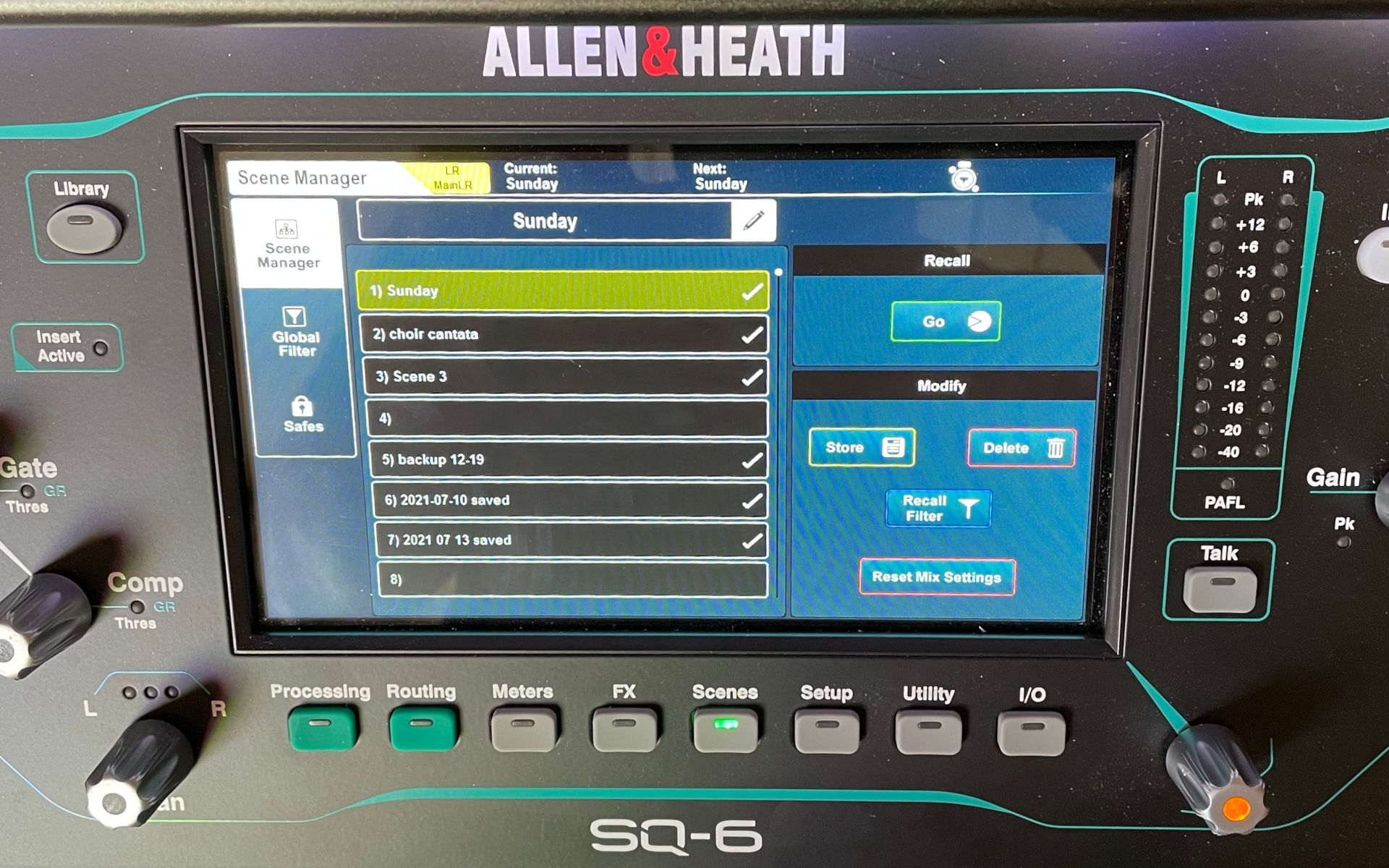
- Press the “Scenes” button below the LCD.
- Press scene 1 – named “Sunday” – on the screen.
- Press “Go” to recall that scene and put the board in a known good state.
Looking at the Sunday Scene
Every Channel is Muted
First, every channel is muted. That means no sound will be headed to the loudspeakers until you unmute something. This is good.
- Jeff comes to the lectern for announcements, unmute the Lectern mic.
- Jeff leaves the lectern when announcements are done, mute the Lectern mic again.
- Terry starts playing a prelude on the piano or organ, unmute the piano mic or hanging mics as appropriate.
- Terry finishes playing, mute those mics again.
Our goal is to have every mic muted unless something is currently making sound into it.
Some Faders are Turned Down
The second thing to notice about the Sunday scene: some faders are up at 0 dB and some are all the way down at -~~ or negative infinity. When you unmute the lectern mic it is already at 0 dB and anything said into it will be loud enough for the congregation to hear. Most vocal mics are set like this: unmute it and it's already at a pretty good volume.
In contrast, some mics are only used to pick up sound for other mixes and not turned up in the LR mix. For instance the hanging mics pick up the sounds of the organ. They are set to -~~ in the LR mix because the organ is LOUD in the sanctuary and we don't need to amplify it. We want to unmute the hanging mics when the organ is playing but keep them turned down in the LR mix.
However the mixes we send outside of the sanctuary will have the hanging mics turned up so those people can hear the organ. It's weird at first to unmute a microphone on the LR mix and then leave it turned all the way down, but that microphone's input is an essential part of other mixes and must be unmuted for those other mixes to sound good.
The LR Mix
The Left-Right, LR, or House mix is what comes out of the sanctuary speakers.
You have approximately four types of sound you'll be controlling:
- Fixed vocal mics. The Lectern, the Pulpit, and the wireless mics used by the pastor and the youth director. These mics remain muted unless someone is speaking into them. These faders remain somewhere near 0 dB so they can be heard as soon as you unmute them.
- Moving choir mics. Terry positions these in front of the choir when they sing. These mics are only unmuted while the choir is singing.
- Instruments. The piano and Terry's CD player. These are unmuted only when appropriate.
- House mics. The hanging mics for the organ and the auditorium mics for the congregational singing and responsive readings. These must be unmuted when the organ plays and when the congregation speaks or sings. They are turned down to -~~ in the LR mix but the signal is turned up in other mixes. Mute them again when finished so we don't get extraneous noises in the other mixes.